


Manage settings
Manage invoicing
Fully configure your invoicing and accounting system
The invoicing system is a central part of Plugin.ch. It lets you manage rates, payment methods, invoice generation, and accounting integration. This section guides you step by step through configuring all invoicing settings according to your club's specific needs.
Access the invoicing settings
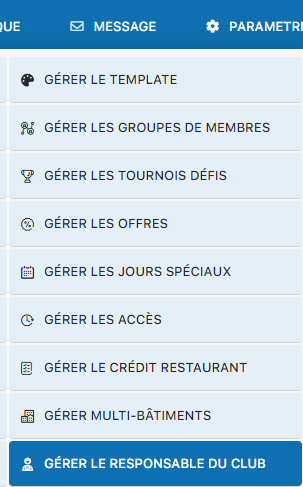
From the Settings menu, click Manage invoicing to access the complete configuration section.
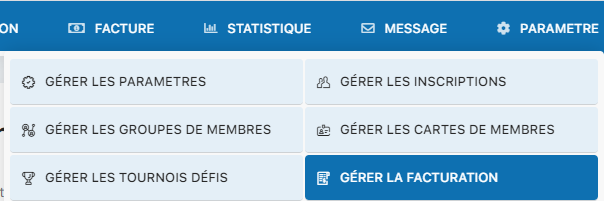
Menu for accessing invoicing management
Configure the general invoicing settings
The configuration screen displays several important settings for managing your invoicing system. Here are the main modules and options available:
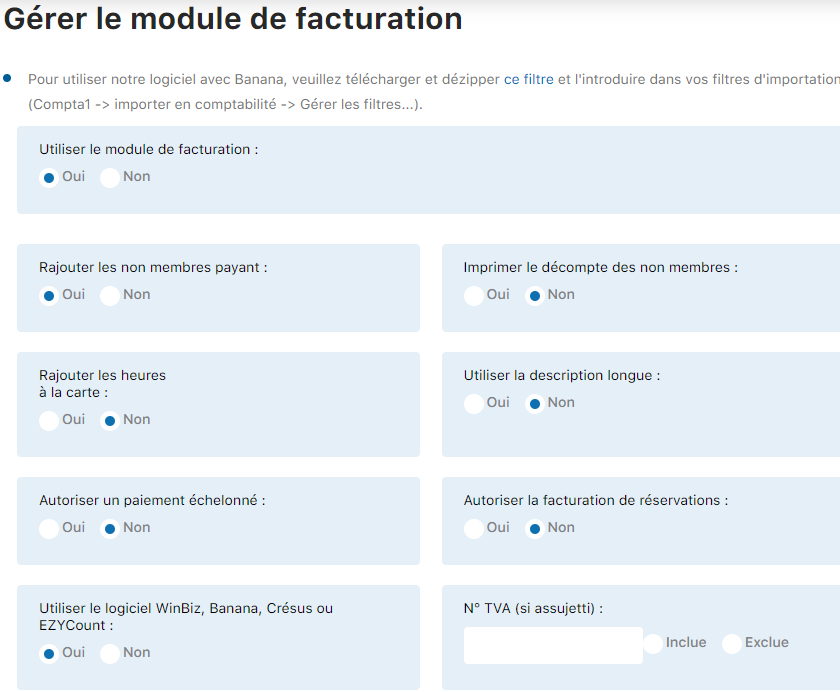
General invoicing settings - section 1
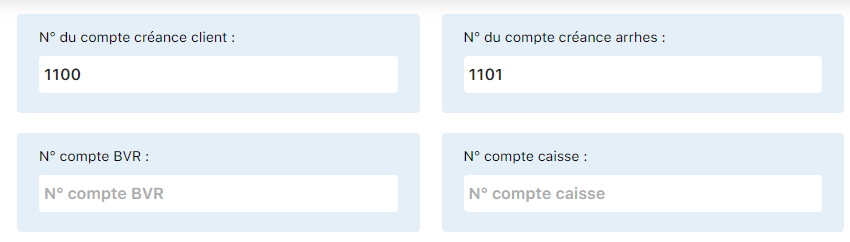
General invoicing settings - section 2
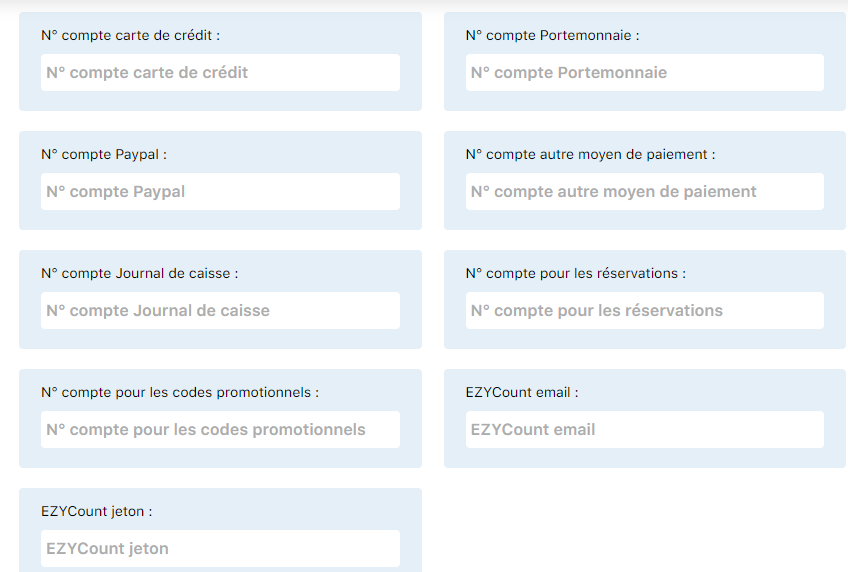
General invoicing settings - section 3
Main invoicing modules:
| Module | Description |
| Use the invoicing module | Activation of the full invoicing system (image42) |
| Add paying non-members | Include non-member participants in invoicing (image43) |
| Print the non-member statement | Generate detailed statements for non-members (image44) |
| Add hourly rate hours | Manage hourly rates and packages (image45) |
| Use the long description | Display detailed descriptions on invoices (image46) |
| Allow installment payment | Allow payments in several installments (image47) |
| Allow invoicing of bookings | Invoice bookings made by coaches (image48) |
| Use of accounting software | Integrate with your accounting software (image49) |
| Club subject to VAT | Enable VAT management and VAT number (image50) |
Configure the accounting account numbers
Link each type of transaction to a specific accounting account. You can enter up to 15 different account numbers for different revenue categories and payment methods:
| Account | Image ref. |
| Customer receivable account number | 51 |
| Deposit (advance payment) | 52 |
| BVR (payment slip) | 53 |
| Cash register | 54 |
| Credit card | 55 |
| Electronic wallet | 56 |
| PayPal | 57 |
| Other payment method | 58 |
| Cash journal | 59 |
| Bookings (coaches) | 60 |
| Promo codes/discounts | 61 |
| EZYCount email | 62 |
| EZYCount token | 63 |
Configure the invoice header
Define the information that will appear at the top of each invoice generated by your system:
Club name
Enter the official name of your club
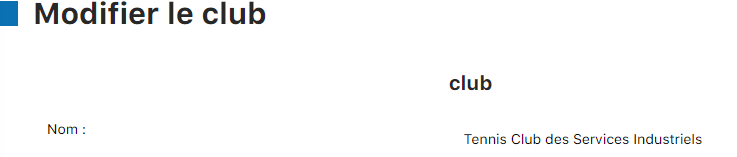
Preview of the club name on the invoice
Club logo
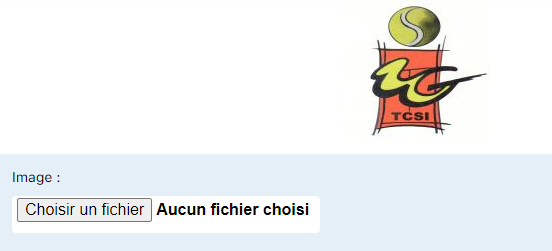
Upload your club's logo (PNG or JPG format)
Club manager
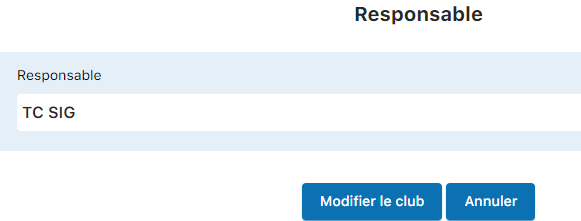
Select the manager who will sign the invoices

Display of the manager on the invoice
Final result

Complete preview of the invoice header with all elements
Configure BVR printing
The BVR (payment slip) is a critical element for payment management. Configure the printing settings so your BVRs print correctly on your documents:
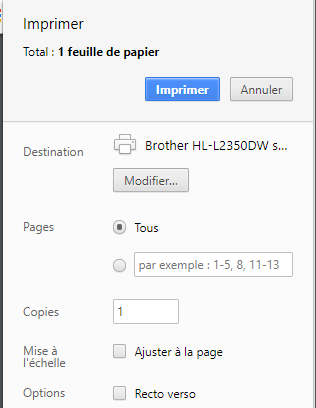
BVR print position configuration
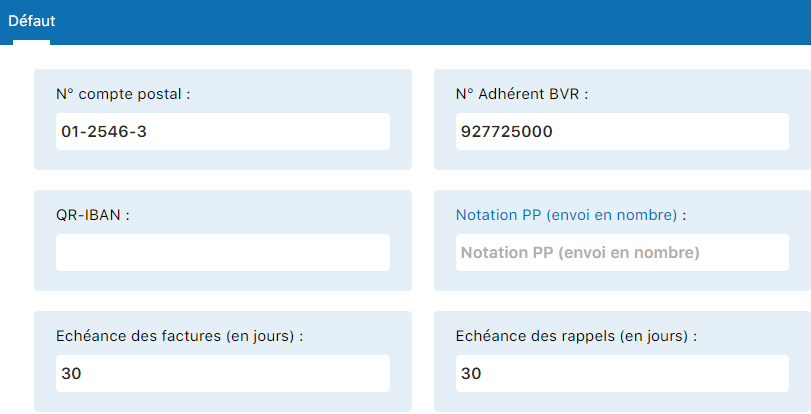
Advanced positioning settings
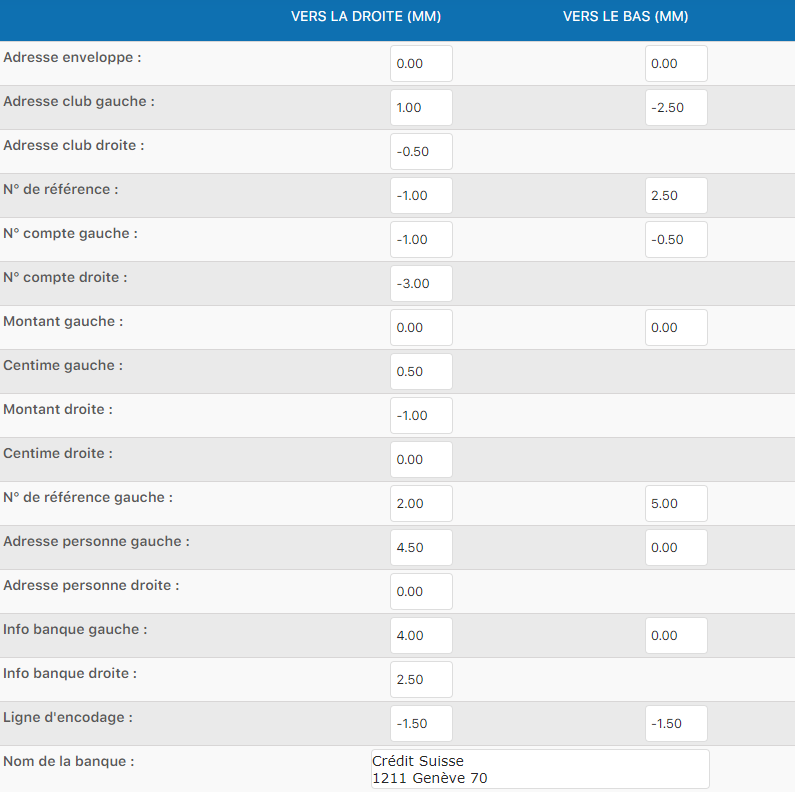
Preview of the BVR with positioning configured
⚠️ Important: Make sure the “Scaling” option is unchecked in your browser's print settings. This ensures your BVR will align correctly on the physical form.
Saving several configurations

You can save several print configurations for different printers
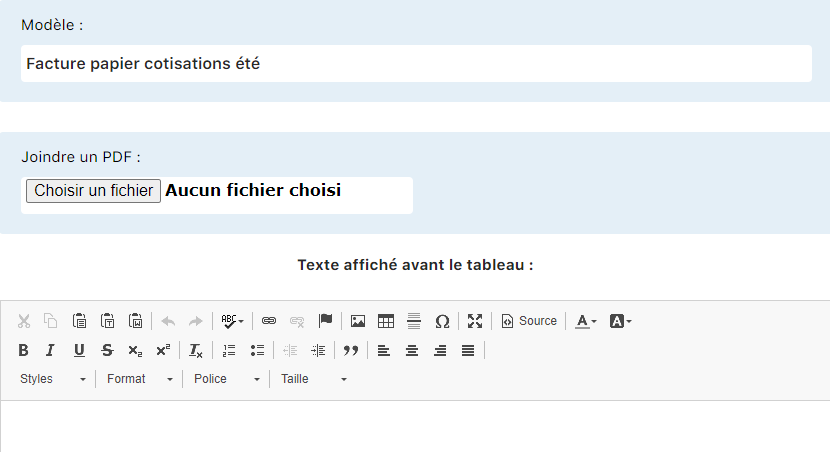
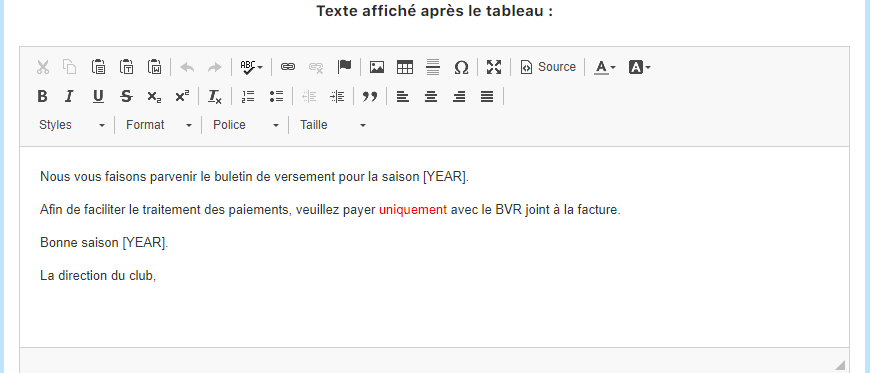
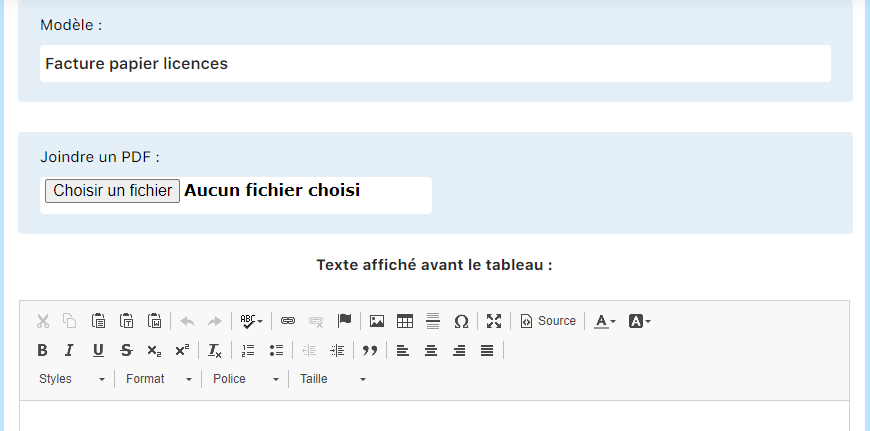
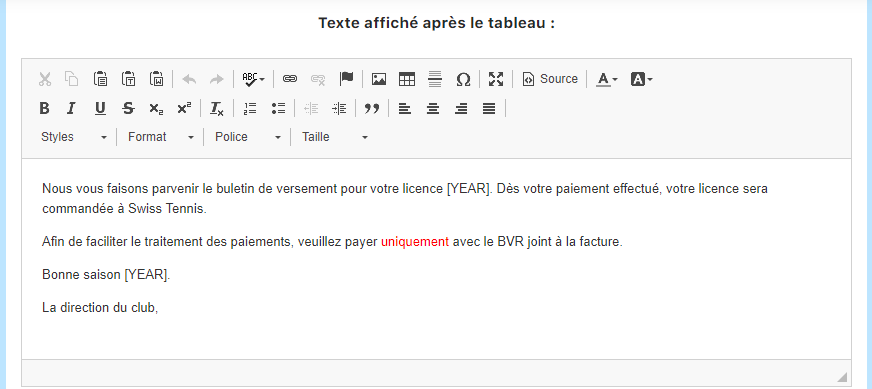
Configure the invoice templates
Plugin.ch lets you customize invoice templates according to your needs. You can create several templates for different types of documents:
Paper invoices
Configure the print templates for your physical invoices:
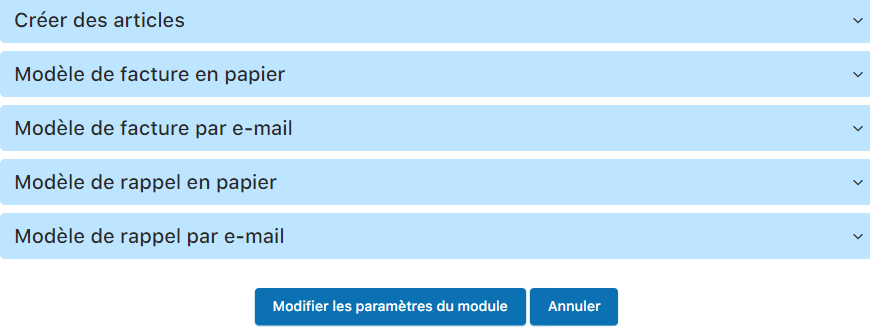

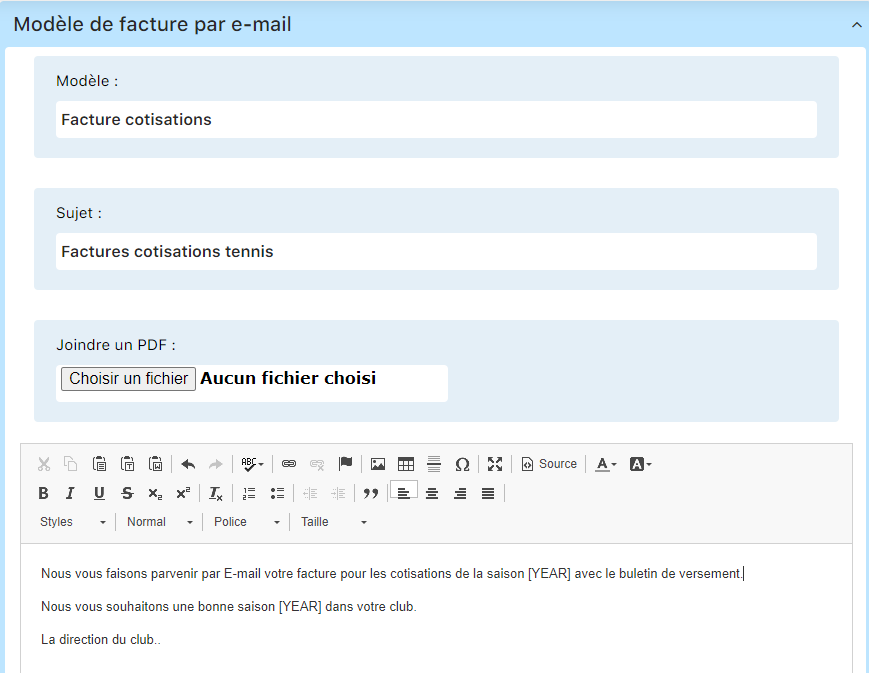
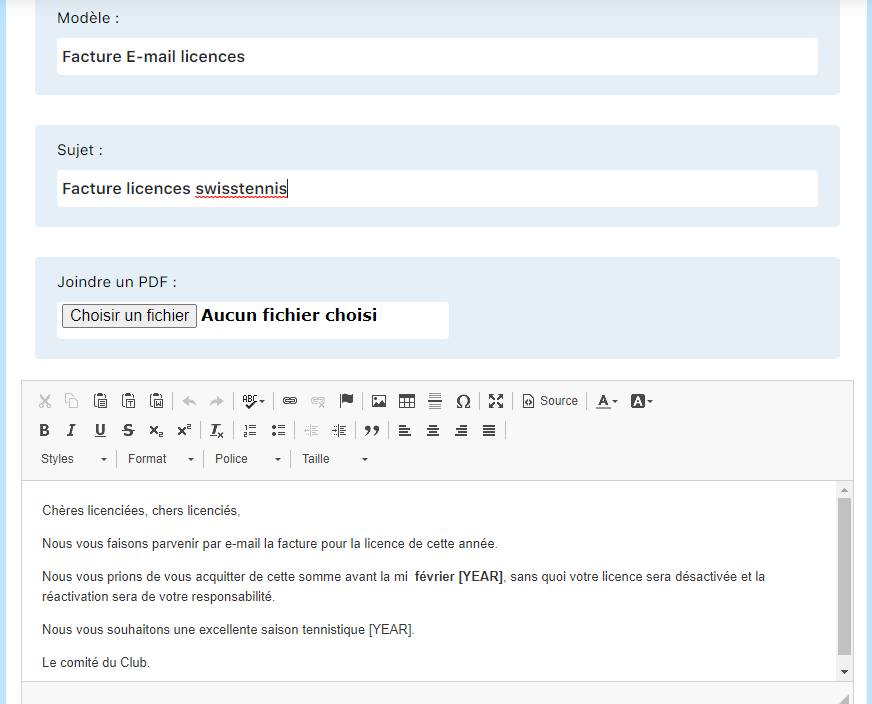
Email invoices
Create electronic templates to send directly to members:
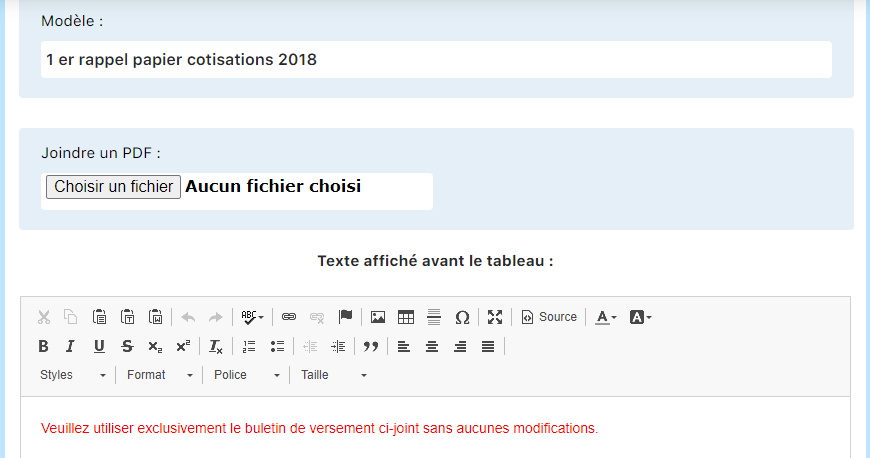
Paper reminders
Manage printed reminders for overdue payments:
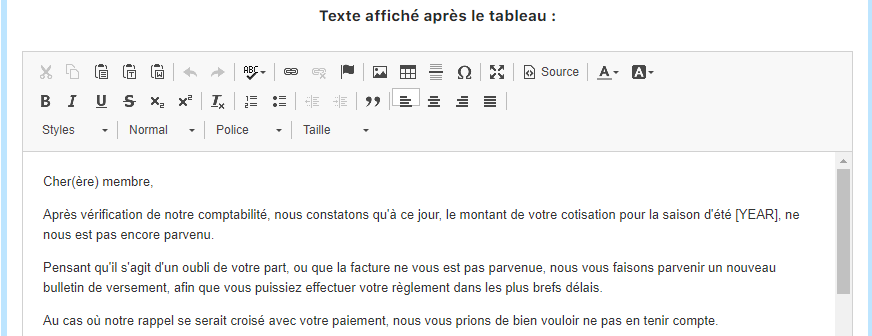

Email reminders
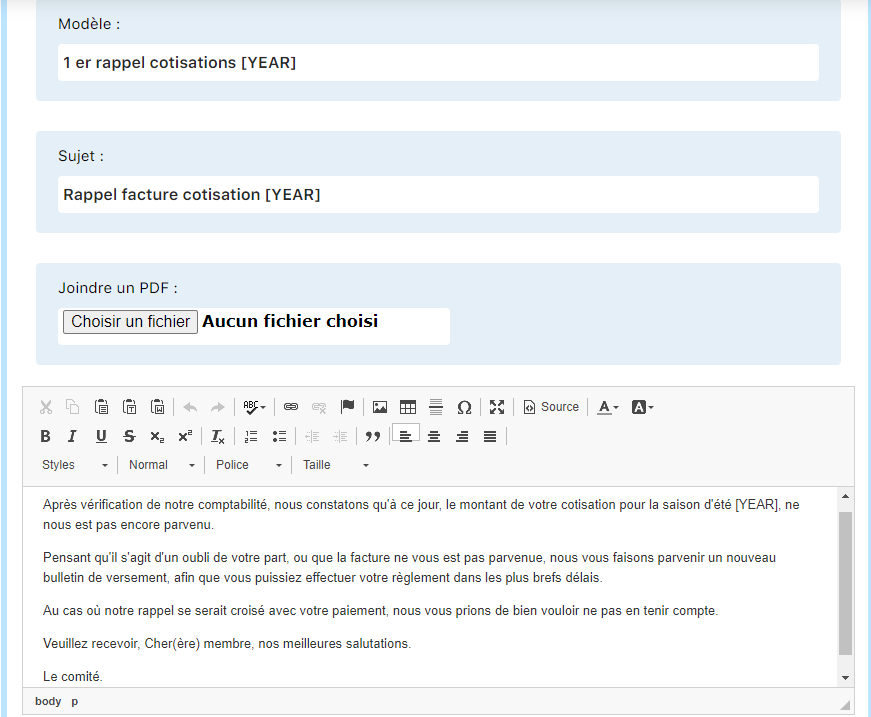
Send digital reminders for unpaid invoices:
⚠️ Very important: After making all the changes in the invoicing configuration, you must click the “Edit module settings” button at the bottom of the page. Without this action, your changes will not be saved.
💡 Tip: Take the time to carefully configure each setting. A good invoicing configuration from the start avoids problems later and ensures accurate accounting.
Plugin.ch Tutorial — Manage settings